
Audio Splitter
Mark where the file should be divided and save every part in one ZIP.
Free · runs in your browser · nothing is uploaded
How to split an audio file
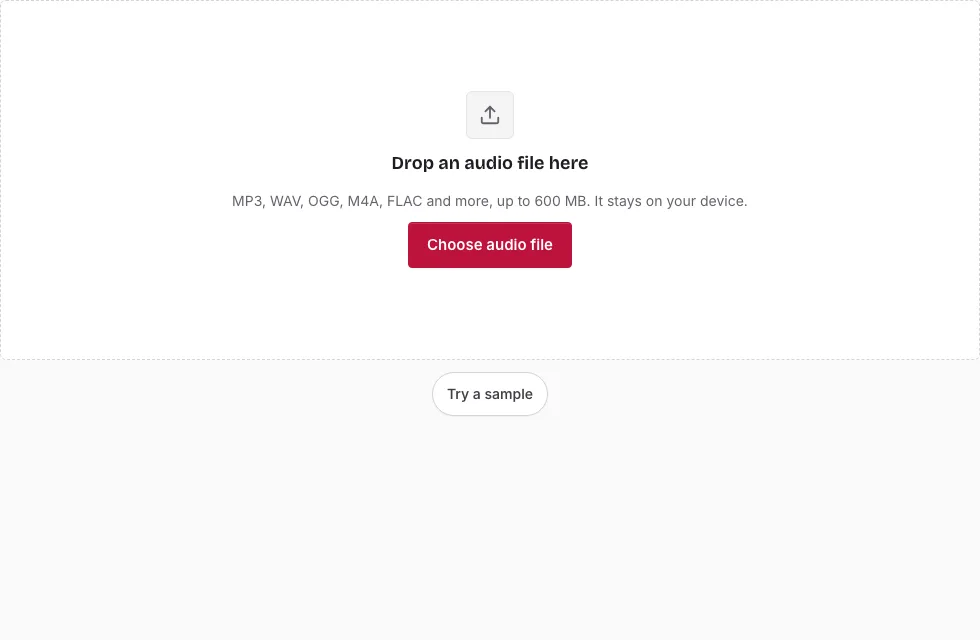
- Press Choose audio file, or drop a file onto the page, and wait for the waveform.
- Click on the waveform, or use the Left and Right arrow keys, to put the playhead where the first part should end.
- Press Add split at playhead. Repeat for every cut. Each split shows as a dashed line and as a chip in the list, and the × on a chip removes it. Clear splits removes them all.
- To make equal parts instead, type a number of seconds next to “Or split every (seconds)” and press Set. The last part is shorter if the length does not divide evenly.
- Zoom with the plus button or the mouse wheel to place cuts precisely. Play, Stop and Loop play the whole file, so you can listen for the right moment.
- Choose a format in the Save panel. For an MP3 source the first choice is “MP3 (original quality, no re-encoding)”.
- Press Split into N files, then Download the ZIP.
The files inside are named after the original with a number: 01, 02 and so on.
If a split lands in the wrong place, press × on its chip and add it again. Set replaces all existing splits with equal-length ones, and Clear splits removes every split, so add hand-placed splits after you use Set. The button text shows how many files will be made, for example Split into 4 files.
What is an audio splitter?
An audio splitter turns one long recording into several shorter files by cutting it at the points you mark. N split points always give N + 1 files, and together they hold the whole recording with nothing removed. Common jobs are chapters from a podcast or lecture, and tracks from an album saved as a single file.
Is splitting an MP3 lossless?
Yes, when you choose “MP3 (original quality, no re-encoding)”. Each part is built from whole MP3 frames copied from the source, so the cuts fall on frame boundaries (26.1 ms at 44.1 kHz) and the sound is untouched. Parts after the first also carry a few lead-in frames that gapless-aware players skip.
Re-encoded MP3, WAV, OGG, FLAC and M4A parts are written from the decoded audio, so those cuts are sample-accurate. MP3 (re-encoded), OGG and M4A are lossy and are encoded afresh.
How do I split a recording into a set number of parts?
The tool asks for a length, not a count, so divide the duration by the number of parts you want and type the result in seconds. A 30-minute lecture in three parts needs 600 seconds each. Alternatively, add one split for each boundary: three parts need only two.
Where should I place the cuts?
Place each split in a quiet moment, such as the gap between two tracks or the pause between two sentences, so no word or note is cut in half. Zoom in on the waveform until the quiet stretch is wide, put the playhead inside it, and listen around that point with Play before adding the split.
How large a recording can I split?
Files up to 600 MB open on a computer and up to 150 MB on a phone. The decoded sound must fit in memory as well, about 60 minutes of 44.1 kHz stereo on a computer and 15 minutes on a phone. The ZIP is also built in memory, so the combined size of all the parts counts too.
How many files will the split make?
Splitting every N seconds gives the length divided by N, rounded up, because the last part holds what is left over. A 60-minute recording split every 10 minutes makes 6 files, and every 15 minutes makes 4. N hand-placed split points always make N + 1 files.
| Recording length | Split every | Files made |
|---|---|---|
| 10 min | 2 min | 5 |
| 30 min | 5 min | 6 |
| 60 min | 10 min | 6 |
| 60 min | 15 min | 4 |
| 120 min | 30 min | 4 |
Frequently asked questions
Can I split one audio file into separate tracks?
Yes. Add a split wherever one track ends, or type a length in seconds to cut equal parts. This splits by time, so it cannot pull vocals or instruments apart.
How do I split audio online?
Open the file, add splits with Add split at playhead or the equal-length box, choose a format, and press the split button. Every part arrives in one ZIP.
Which file types can I use?
MP3, WAV, OGG, M4A, AAC, FLAC, AIFF and Opus files. WAV and AIFF are read directly, and the browser decodes the rest, so a format it cannot play shows an error.
What do I get when the split is finished?
A ZIP with one file per part, numbered after the original name. The ZIP is stored without compression, because audio files are already compressed or are WAV. The Save panel can also change the sample rate and the channels.
Is there a file size limit?
Yes: 600 MB on a computer and 150 MB on a phone, and the decoded audio has to fit in memory. A 10-minute stereo file at 44.1 kHz takes about 212 MB decoded.
Is it free, and are my files private?
It is free, needs no account and installs nothing. The file is read and split inside your browser and is never sent to a server.
Can I use it on a phone?
Yes, in a phone or tablet browser, within the 150 MB and roughly 15-minute limits.
Can I split a WAV file into parts?
Yes. WAV is read directly. Save the parts as WAV 16-bit, 24-bit or 32-bit float, or as FLAC, OGG or M4A.
Related tools
- MP3 Cutter: use it to keep one part of an MP3 without re-encoding.
- Cut Audio: use it to delete one section and join the rest.
- Silence Remover: use it to take out quiet gaps first.
- Audio Joiner: use it to put the parts back together in a new order.
- MP3 Joiner: use it to join MP3 files without re-encoding.
- Free Audio Editor: use it for several edits in one place.
- Loop Audio: use it to repeat a short part.