
FLAC to WAV
Open a FLAC file and save it as WAV.
Free · runs in your browser · nothing is uploaded
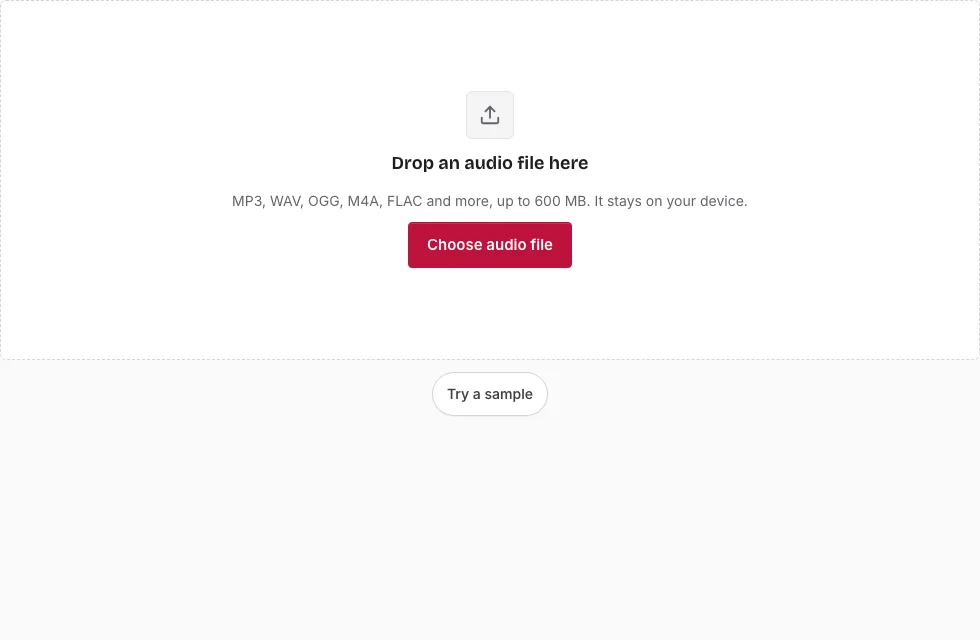
Converting a FLAC to WAV in the browser
- Choose Choose audio file and open the FLAC, or drop it onto the page.
- Read the file line (length, sample rate, channels, size) to confirm what you loaded.
- Optional: drag across the waveform to select a part. Start here and End here use the playhead position, and the Start, End and Length boxes take exact times.
- Under Save, set Bit depth. Choose 24-bit for a 24-bit FLAC, 16-bit for a 16-bit one, and 32-bit float if the next program wants floating-point audio.
- Leave Sample rate and Channels on “Same as source” to keep the FLAC’s own values.
- Edit the File name if the suggested “-converted” name does not suit you, then press Save as WAV. The progress bar shows the blocks as they are written, and Cancel stops it.
- When “Ready.” appears, press Download.
Playing the original FLAC with Play before you convert helps you pick the right section, and the small player under the result lets you check the WAV before you download it. The line above the Save button shows the expected length and size, which is handy for comparing 16-bit and 24-bit.
If the next program needs a fixed rate, such as 48000 Hz, set Sample rate in step 5 rather than resampling later, and remember that this resamples the sound.
Is FLAC as good as WAV?
Yes in sound, no in size. FLAC compresses audio without discarding anything, so decoding it returns the same samples a WAV would hold, at the file’s own bit depth. The difference is that a WAV is stored uncompressed and so takes more space, while FLAC trades a little processing for a smaller file.
Why convert FLAC to WAV instead of keeping the FLAC?
Compatibility and speed of editing. Some editors, samplers and devices accept WAV but not FLAC, and a WAV is the format their import dialogs expect. If your player already reads FLAC, converting only costs disk space, so keep the FLAC as the master and make the WAV for the one program that needs it.
Will converting FLAC to WAV lose quality?
Not by itself. A 24-bit FLAC saved as 24-bit or 32-bit float WAV keeps its values, and a 16-bit FLAC saved as 16-bit WAV does too. Quality drops only if you choose a lower bit depth than the source, since no dither is added, or pick a new sample rate, which resamples the sound.
Which bit depth should I pick for a FLAC?
Match the source. A 16-bit FLAC saved as 16-bit WAV and a 24-bit FLAC saved as 24-bit WAV keep every sample exactly. The 32-bit float option holds either of them without rounding and mainly suits editors that work in floating point. Choosing 16-bit for a 24-bit file reduces its precision, because the page adds no dither or noise shaping.
What is a FLAC file?
FLAC stands for Free Lossless Audio Codec. A FLAC file stores a recording in a compressed form that rebuilds exactly on playback. Files typically land at about half to two thirds of the equivalent WAV, depending on the music, which is why they are popular for archives.
How big will the WAV file be?
The WAV is much larger than a compressed source because it stores every sample: 16-bit stereo at 44.1 kHz is 1411 kbps, or 10.1 MB per minute. A 3-minute song is 30.3 MB as 16-bit WAV, 45.4 MB as 24-bit and 60.6 MB as 32-bit float. The table compares them with a FLAC source (1 MB = 1,048,576 bytes).
| Length | FLAC (about 60% of WAV) | WAV 16-bit | WAV 24-bit | WAV 32-bit float |
|---|---|---|---|---|
| 1 min | 6.1 MB | 10.1 MB | 15.1 MB | 20.2 MB |
| 3 min | 18.2 MB | 30.3 MB | 45.4 MB | 60.6 MB |
| 5 min | 30.3 MB | 50.5 MB | 75.7 MB | 101 MB |
| 10 min | 60.6 MB | 101 MB | 151 MB | 202 MB |
Frequently asked questions
Can FLAC files be converted to WAV?
Yes. Open the FLAC here, choose a bit depth and press Save as WAV. The result is an ordinary WAV file.
Is there a free way to convert FLAC to WAV?
This page does it for free, and the only limits come from your device: 600 MB per file and about 60 minutes of 44.1 kHz stereo on a computer, 150 MB and about 15 minutes on a phone.
Is WAV better than FLAC?
Not for sound, since both are lossless and hold the same samples. WAV is just more widely accepted, and larger, so it suits editors and devices that do not read FLAC.
Will my file be uploaded to a server?
No. The FLAC is decoded and the WAV is written on your own device.
Which software supports WAV?
Almost all audio editors, sound libraries and video tools read WAV, and so do most media players.
How do I open a FLAC file?
Many current players and editors play FLAC. You can also open it on this page, where it shows its waveform and plays.
What is the maximum FLAC file size?
The page refuses a FLAC above 600 MB on a computer or 150 MB on a phone, and the decoded audio must fit in memory as well.
Related tools
- Audio Converter: choose a different target format.
- WAV to FLAC: shrink a WAV without losing anything.
- FLAC to OGG: make a small lossy copy of a FLAC.
- MP3 to WAV: decode an MP3 to WAV.
- Normalize Audio: set the level after conversion.
- Cut Audio: remove part of the file.
- Audio Splitter: cut an album-length FLAC into tracks.