
Online Voice Recorder
Press record, say it, then trim the take and save it.
Free · runs in your browser · nothing is uploaded
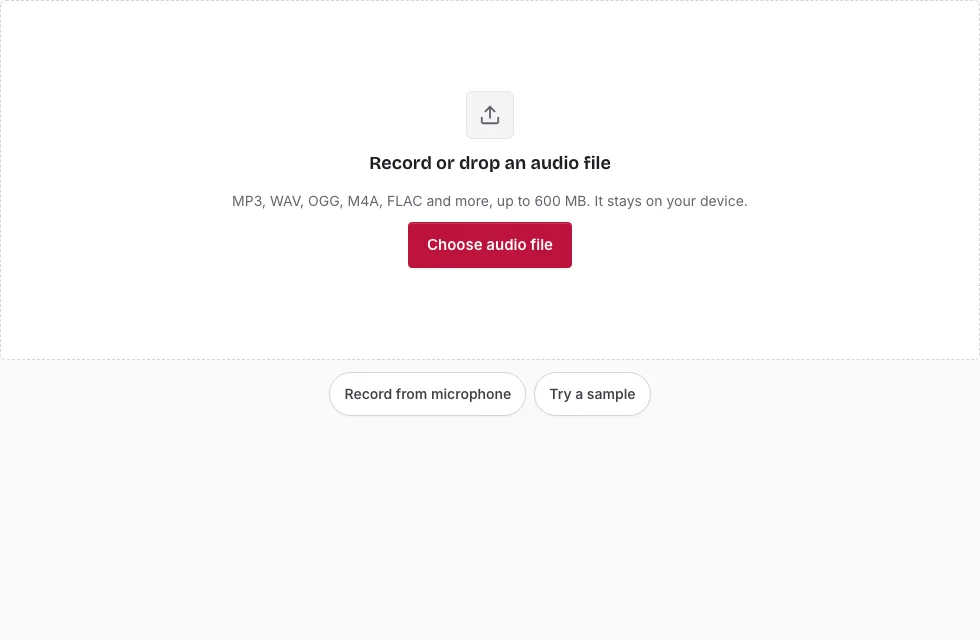
Recording and saving a voice clip
- Press Record from microphone under the drop area. The browser asks for microphone permission; choose Allow.
- Speak, or play the sound you want to capture near the microphone. The page records from the browser’s default input.
- Press Stop recording. The take loads as “recording” on the waveform.
- Press Play to listen back. To keep only a section, drag across the waveform and adjust the handles, or type Start, End and Length. Select all and Clear selection reset it, and with no selection the whole take is saved.
- Open the Fades heading if you want a fade in or fade out of up to 10 seconds.
- In Save, choose a Format and, if needed, a different Sample rate or Channels.
- Press Save as WAV (or the name of your format). The progress bar runs, and Cancel stops it.
- When “Ready.” appears, check the result in the small player and press Download.
Tips: the line above the Save button shows the expected length and size, and the File name box lets you rename the take. Save the file before leaving, because the take lives in memory until the page closes. To record another take afterwards, press Record again.
What format does the browser record in?
The browser chooses. Common results are WebM or Ogg with Opus, or MP4 with AAC, depending on the browser. The page decodes that stream so that you can edit it, and then writes the format you pick. Whatever you choose, the recording started as a compressed stream and the saved file can only be as detailed as that.
Does saving as WAV or FLAC improve the recording?
No. WAV and FLAC are lossless containers for the decoded sound, so they make the file bigger or exact, not clearer. Choose them when an editor needs a standard file or you plan to process the clip further. For a voice memo to share, OGG or M4A gives a much smaller file.
Why are echo cancellation and noise suppression off?
The page asks the browser for a raw capture, with echo cancellation, noise suppression and automatic gain control switched off, so the recording is not altered behind your back. The consequence is that background noise and room echo are not removed, so a quiet room and headphones help. If the level is low, the Normalize Audio page can raise it afterwards.
What if the microphone is blocked or missing?
If permission is refused, a message says “Microphone access was blocked” and suggests allowing it in the browser address bar or opening an audio file instead. If recording does not work in the browser at all, the page says so and you can drop a file onto it.
Can I record from a particular microphone?
The page records one microphone at a time, through the browser’s default input. To use another, choose it in the browser or system sound settings before you start.
How long can a recording be?
The decoded recording has to fit in memory, about 60 minutes of 44.1 kHz stereo on a computer and about 15 minutes on a phone. Long takes are written out in 20-second blocks with a progress bar. The size table below shows what a take costs in each format.
How much space does a recording take?
Space depends on the format you save in, not on the format the browser recorded. A WAV at 44.1 kHz stereo and 16-bit takes 10.1 MB for every minute, and mono takes 5.0 MB. OGG and M4A are much smaller. The table gives the size of a recording of different lengths (1 MB = 1,048,576 bytes).
| Length | WAV 16-bit mono | WAV 16-bit stereo | OGG Balanced mono | M4A 128 kbps |
|---|---|---|---|---|
| 1 min | 5.0 MB | 10.1 MB | 0.5 MB | 0.9 MB |
| 3 min | 15.1 MB | 30.3 MB | 1.5 MB | 2.7 MB |
| 5 min | 25.2 MB | 50.5 MB | 2.6 MB | 4.6 MB |
| 10 min | 50.5 MB | 101 MB | 5.1 MB | 9.2 MB |
Frequently asked questions
How do I record audio online?
Press Record from microphone, allow microphone access, speak, and press Stop recording. Then save the take in the format you want.
Can I save a recording as MP3?
No. This site saves WAV, OGG Vorbis, FLAC and M4A. MP3 appears only for cutting or joining files that already are MP3.
Which formats can I save in?
WAV (16-bit, 24-bit or 32-bit float), OGG Vorbis, FLAC and M4A where the browser can encode AAC.
Can I trim the recording?
Yes. Select a part on the waveform and only that part is saved. Fade in and fade out are available too.
Why does my browser ask for permission?
Browsers always ask before a page may use the microphone. Without your permission, nothing is recorded.
Can I open an existing audio file instead?
Yes. Press Choose audio file or drop a file on the page, and use the same trimming and saving tools.
Can I add a fade to the recording?
Yes. Open the Fades heading and set a fade in or fade out of up to 10 seconds each.
Can I record again?
Yes. Press Record again after a take has loaded. Save the first take before you start, as it lives only in memory.
Related tools
- Ringtone Maker: turn a recording into a phone ringtone.
- Audio Converter: change the format of a saved take.
- Normalize Audio: raise a quiet recording to a standard level.
- Silence Remover: cut dead air from a voice recording.
- Cut Audio: remove a section from the middle.
- Compress Audio File: shrink a long take.
- Audio Splitter: split a long recording into parts.